

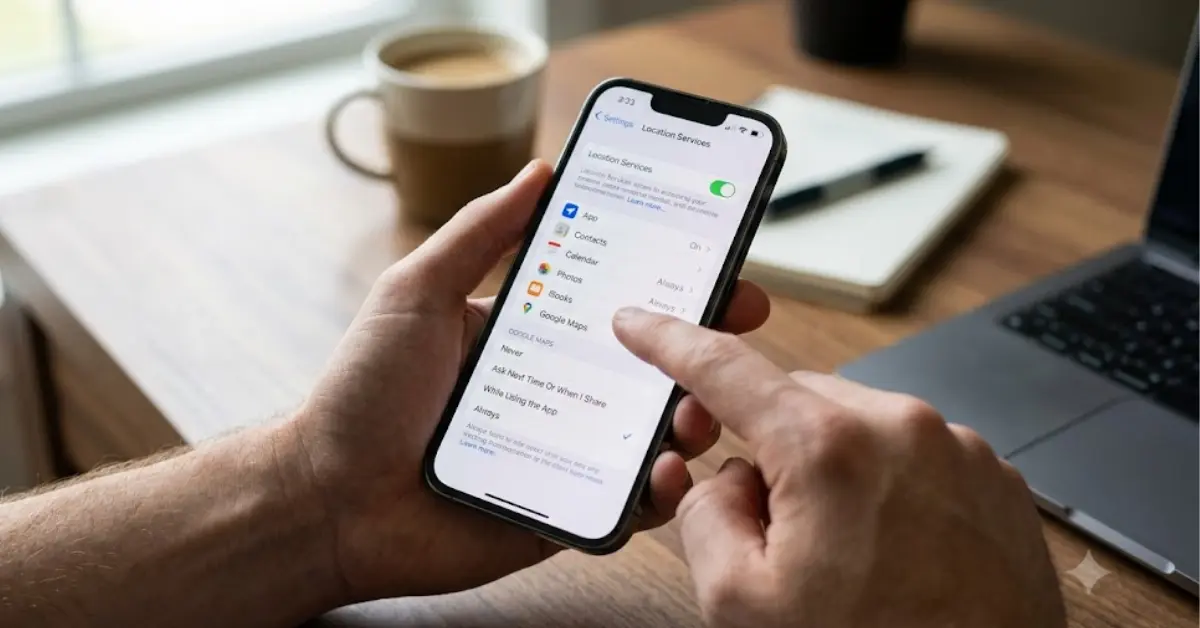
Introduction
How to Stop Smartphone Apps from Tracking Your Location in the Background
How to Stop Smartphone Apps from Tracking Your Location in the Background: Smartphones have become an essential part of everyday life, helping us navigate, shop, communicate, and stay connected. However, many apps continue collecting location data even when you’re not actively using them. This background location tracking can reveal where you live, work, travel, and spend your time—raising important privacy concerns.
If you’ve ever wondered how to stop smartphone apps from tracking your location in the background, you’re not alone. Many users are surprised to discover that certain apps request “Always Allow” location access during installation and continue collecting GPS data long after they’ve been closed.
Fortunately, both Android and iPhone include built-in privacy controls that let you decide which apps can access your location, when they can use it, and how precise that information should be. By understanding these settings, you can reduce unnecessary tracking without sacrificing the features you actually use.
This guide explains how background location tracking works, why apps request your location, and the practical steps you can take to protect your privacy. Whether you’re using an Android phone or an iPhone, you’ll learn how to review permissions, disable unnecessary tracking, and adopt better privacy habits for long-term security.
What Is Smartphone Background Location Tracking?
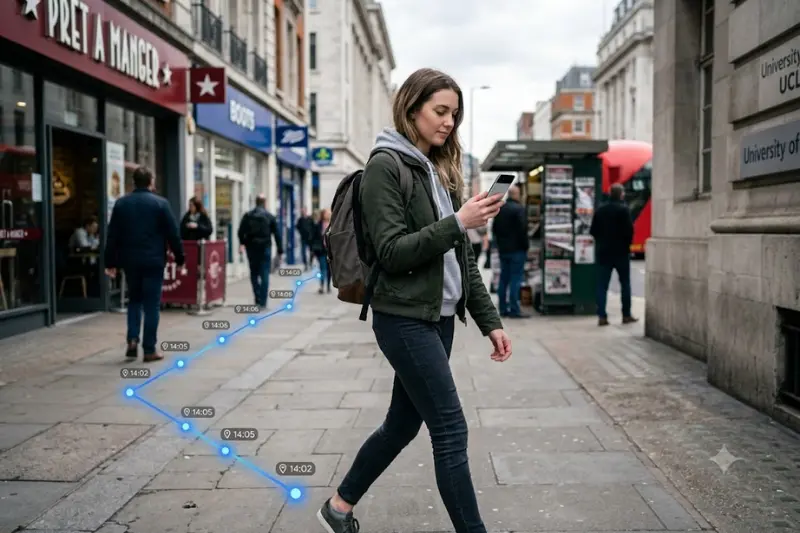
Background location tracking is the process of an app collecting your device’s location even when the app is not actively open on your screen. It typically relies on GPS, Wi-Fi networks, Bluetooth signals, and nearby cell towers to estimate your position.
Many apps use background location for legitimate purposes—such as navigation, weather updates, ride-sharing, or fitness tracking—but some may also collect location data for analytics, advertising, or personalized recommendations. Regularly reviewing and limiting these permissions helps you maintain better control over your personal information.
How Smartphone Location Tracking Works?
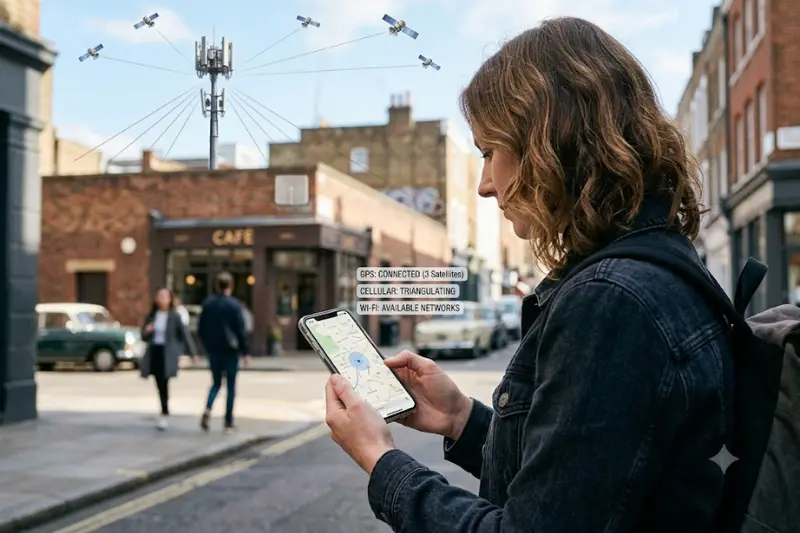
Many people assume their phone uses only GPS to determine location, but modern smartphones combine several technologies to estimate your position accurately while conserving battery life.
GPS (Global Positioning System)
GPS communicates with satellites to calculate your location, often within a few meters outdoors. It is highly accurate but can consume more battery than other methods.
Common uses:
- Navigation apps
- Fitness tracking
- Ride-sharing
- Outdoor activities
Wi-Fi Positioning
Even if you’re not connected to a Wi-Fi network, your phone can detect nearby Wi-Fi access points. By comparing them with a database of known locations, it can estimate where you are—especially indoors where GPS may be weaker.
Cellular Network Location
Your phone constantly communicates with nearby cell towers. The network can estimate your location based on signal strength and tower proximity.
Although less precise than GPS, it’s often sufficient for emergency services and general location-based features.
Bluetooth Beacons
Shopping malls, airports, museums, and retail stores may use Bluetooth beacons to detect nearby devices. Apps with Bluetooth permissions can use these signals to provide indoor navigation or location-aware experiences.
Sensor Fusion
Modern Android and iPhone devices combine:
- GPS
- Wi-Fi
- Cellular signals
- Bluetooth
- Accelerometer
- Gyroscope
- Compass
This “sensor fusion” approach provides faster, more reliable location estimates than relying on a single technology.
Why Apps Track Your Location
Not all location tracking is harmful. Some apps genuinely require your location to function as intended.
Legitimate Reasons
Examples include:
| App Type | Why Location Is Needed |
|---|---|
| Maps & Navigation | Turn-by-turn directions |
| Ride-sharing | Pickup and destination |
| Weather | Local forecasts |
| Food Delivery | Delivery address and driver tracking |
| Fitness Apps | Route recording and distance |
| Emergency Apps | Share location during emergencies |
Less Necessary Reasons
Some apps request location access even when it’s not essential, such as:
- Flashlight apps
- Photo editors
- Simple games
- Wallpaper apps
- Calculators
In these cases, location data may be used for analytics, advertising, or personalization rather than core functionality.
Understanding Android Location Permission Options
Android offers several permission levels so you can control when an app can access your location.
| Permission | What It Means | Recommended? |
|---|---|---|
| Allow all the time | App can track you in the background | Only for trusted apps that truly need it |
| Allow only while using the app | Access only when the app is open | Best choice for most apps |
| Ask every time | Prompts each time location is requested | Good for sensitive apps |
| Don’t allow | No location access | Best if location isn’t required |
Privacy tip: For most apps, “Allow only while using the app” provides a good balance between functionality and privacy.
How to Stop Apps from Tracking Your Location on Android
The exact menu names may vary slightly depending on your phone manufacturer and Android version.
Step 1: Open Settings
Go to:
Settings → Location
Ensure Location Services are enabled only if you need them.
Step 2: Review App Permissions
Navigate to:
Settings → Privacy → Permission Manager → Location
or
Settings → Apps → Permissions → Location
You’ll see every app that has requested location access.
Step 3: Remove Background Access
For each app:
- Tap the app name.
- Change Allow all the time to Allow only while using the app or Don’t allow if location isn’t needed.
Prioritize reviewing social media, shopping, and entertainment apps.
Step 4: Disable Precise Location (Optional)
Some Android versions let you choose between:
- Precise location
- Approximate location
If an app only needs your general area (for example, a weather app), choose Approximate location to improve privacy.
Step 5: Check the Privacy Dashboard
On Android 12 and later:
Settings → Privacy → Privacy Dashboard
This dashboard shows:
- Which apps accessed your location
- When they accessed it
- How frequently
Review it periodically to spot unexpected behavior.
Step 6: Turn Off Google Location History (Optional)
If you use a Google account, Location History may be enabled.
You can disable or delete it from your Google Account settings if you don’t want your location history stored.
How to Stop Apps from Tracking Your Location on iPhone
Apple provides similar privacy controls with additional features like Precise Location.
Step 1: Open Privacy Settings
Go to:
Settings → Privacy & Security → Location Services
You’ll see a list of apps with location permissions.
Step 2: Review Each App
Tap an app and choose one of the following:
- Never
- Ask Next Time
- While Using the App
- Always (only if necessary)
For most apps, While Using the App is the safest practical option.
Step 3: Turn Off Precise Location
Many apps don’t need your exact position.
Within an app’s location settings, disable Precise Location to share only an approximate area.
This can significantly improve privacy while allowing apps like weather services to function normally.
Step 4: Review System Services
Navigate to:
Settings → Privacy & Security → Location Services → System Services
Here you can review features such as:
- Significant Locations
- Location-Based Suggestions
- Device Analytics
- Location-Based Alerts
Disable features you don’t use, but avoid turning off emergency-related services unless you fully understand the consequences.
Android vs. iPhone Location Privacy Comparison
| Feature | Android | iPhone |
|---|---|---|
| Background location control | Yes | Yes |
| Approximate location | Yes | Yes |
| Privacy activity dashboard | Yes | Privacy Report (varies by iOS version) |
| Permission manager | Yes | Yes |
| App-by-app controls | Yes | Yes |
| Temporary permissions | Ask Every Time | Ask Next Time |
Both platforms provide robust privacy controls. The key difference is not the operating system but how carefully users review and manage app permissions.
Privacy Best Practices
To reduce unnecessary location tracking:
- Review location permissions every few months.
- Grant “Allow only while using the app” whenever possible.
- Remove permissions from apps you no longer use.
- Prefer Approximate Location unless precise GPS is required.
- Keep your operating system updated with the latest security patches.
- Download apps only from trusted app stores.
- Read permission requests before accepting them.
- Delete apps that request excessive permissions without a clear reason.
- Periodically check your device’s privacy dashboard or app privacy reports.
- Be cautious when installing newly released apps with limited reviews.
These habits help minimize background tracking while preserving the functionality of apps you rely on.
Benefits of Stopping Background Location Tracking
Reducing unnecessary location tracking isn’t just about privacy. It can also improve your phone’s performance and give you greater control over your personal data.
1. Better Privacy
Your location can reveal surprisingly sensitive information, including:
- Home and work addresses
- Daily routines
- Places you visit frequently
- Travel habits
- Shopping preferences
Limiting background access helps reduce the amount of personal information collected by apps.
2. Longer Battery Life
GPS is one of the most power-intensive features on a smartphone.
Apps that constantly request your location may continue using battery resources even when you’re not actively using them.
By allowing location access only while using the app, many users notice improved battery performance.
3. Reduced Data Collection
Many apps use location data for:
- Personalized advertising
- Market research
- User analytics
- Behavioral profiling
Restricting permissions minimizes unnecessary data collection and gives you more control over how your information is used.
4. Improved Security
If an app is compromised through a security vulnerability, limiting its permissions also limits the amount of sensitive information it can access.
Following the principle of least privilege—granting only the permissions an app truly needs—is a widely recommended cybersecurity practice.
5. Better Control Over Your Digital Footprint
Reviewing location permissions encourages a healthier approach to smartphone privacy. It helps you understand which apps genuinely require location access and which do not.
Practical Use Cases
Travelers
When visiting unfamiliar places, enable location only for navigation and transportation apps. Disable it again when it’s no longer needed.
Parents
Review the permissions on your children’s devices to ensure games and entertainment apps aren’t collecting unnecessary location data.
Remote Workers
Protect your home address and daily routine by limiting location access for work-related apps that don’t require it.
Frequent Shoppers
Many retail apps use location for nearby store suggestions and promotions. If you don’t use these features, consider switching to While Using the App or Never.
Social Media Users
Most social networking apps function perfectly without continuous background location access. You can usually disable it without affecting core features.
Drawbacks & Limitations
While limiting location access improves privacy, it may also affect certain app features.
Navigation Apps
Apps like Google Maps or Apple Maps require real-time location access for accurate turn-by-turn directions.
Recommendation: Use While Using the App rather than Always, unless background navigation is essential.
Fitness Tracking
Running, cycling, and hiking apps often rely on continuous GPS tracking to record your route accurately.
If you disable background location during an activity, route tracking may be incomplete.
Ride-Sharing Apps
Services such as Uber or Lyft use your location to find nearby drivers and calculate pickup times. Restricting location access may reduce convenience.
Emergency Services
Features like Emergency SOS or crash detection may rely on location services. Avoid disabling emergency-related system features unless you fully understand their impact.
Weather Apps
Without location access, weather apps may require you to enter your city manually instead of providing automatic local forecasts.
Common Mistakes Users Make
Avoid these common privacy pitfalls:
- Granting Always Allow without considering whether it’s necessary.
- Ignoring permission requests during app installation.
- Never reviewing app permissions after updates.
- Leaving unused apps installed with active permissions.
- Assuming deleting an app account also removes all collected data.
- Confusing App Tracking with Location Tracking—they are related but controlled separately on many devices.
Myths vs. Reality
| Myth | Reality |
|---|---|
| Turning off GPS completely makes you impossible to track. | Your phone may still estimate location using Wi-Fi or nearby cell towers. |
| Every app requesting location is spying on users. | Many apps need location for legitimate features such as navigation or weather updates. |
| iPhones can’t be tracked. | Both Android and iPhone devices can share location if permissions are granted. |
| Closing an app always stops location tracking. | Apps with background permission may continue accessing location even after you close them. |
| Disabling Location Services fixes all privacy issues. | Other data, such as IP address, Bluetooth, or network information, may still reveal approximate location. |
Hidden Privacy Features Many Users Overlook
Approximate Location
Instead of sharing your exact GPS coordinates, many Android and iPhone versions let you provide only a general area.
This is often sufficient for weather, news, or local search apps.
One-Time or Temporary Permissions
Some operating systems allow you to grant location access only for a single session.
This is useful for apps you use occasionally but don’t fully trust.
Privacy Dashboard (Android)
The Privacy Dashboard provides a history of which apps accessed sensitive permissions, including location.
Checking it regularly can help identify apps that request location more often than expected.
App Privacy Reports (iPhone)
Recent versions of iOS include privacy reports showing how frequently apps access permissions like location, camera, microphone, and contacts.
Review these reports periodically to ensure permissions align with your expectations.
Google Location History
Even if individual apps have limited location permissions, your Google Account may still store location history if the feature is enabled.
Review your account settings if you want to pause or delete this history.
Significant Locations (iPhone)
Apple devices can store frequently visited places to improve features like Maps and Siri suggestions.
If you don’t use these personalized features, you can review and disable this option in your location settings.
Expert Tips & Advanced Privacy Strategies
Review Permissions Regularly
Make it a habit to check app permissions every few months, especially after installing new apps or major operating system updates.
Only Grant What Is Necessary
Choose While Using the App whenever possible. Reserve Always Allow only for apps that genuinely require continuous location access.
Keep Your Device Updated
Security updates often include improvements to permission controls and privacy features. Installing updates promptly helps protect your device.
Remove Apps You No Longer Use
Unused apps may retain permissions indefinitely. Deleting apps you don’t need reduces your digital footprint and minimizes unnecessary data collection.
Use Trusted Sources
Download apps only from official app stores and review permissions before installation. Be cautious of apps requesting access that doesn’t match their advertised functionality.
Understand the Difference Between Privacy Settings
Remember that location permissions, advertising identifiers, Bluetooth, and network connectivity each contribute differently to your overall privacy. Reviewing them together provides stronger protection than adjusting only one setting.
Expert Insight
From a practical privacy standpoint, the most effective strategy isn’t disabling location services entirely—it’s granting the minimum level of access required for each app. Navigation and emergency apps may legitimately need your location while in use, whereas many games, utilities, and social media apps function well with limited or no background access. Regular permission reviews, combined with careful app selection, offer a balanced approach that enhances privacy without sacrificing usability.
Coming Next: Part 4
The final content section will include:
- Complete FAQ (answering all Google “People Also Ask” questions)
- Privacy checklist
- 200–250 word SEO-optimized conclusion
- Featured image concept
- SEO image alt text
- Internal linking suggestions for maximum topical authority
How do I stop phone-based tracking?
The most effective way is to review your phone’s location permissions and limit apps to “While Using the App” or “Never” unless continuous access is essential. You should also review your Google or Apple account’s location-related settings if you want to reduce stored location history.
How do I turn off location tracking on my phone?
Open your phone’s Location Services settings and disable location access entirely, or manage permissions individually for each app. Turning location off completely may affect navigation, weather, and emergency features.
How do I block someone from tracking my phone?
If you’re concerned about unauthorized tracking:
Review installed apps and remove anything unfamiliar.
Check app location permissions.
Disable location sharing features you don’t use.
Change your Google or Apple account password if you suspect unauthorized access.
Ensure your device is running the latest security updates.
If you believe your phone has been compromised, perform a security scan or consider a factory reset after backing up important data.
How do I turn off tracking on my Android phone?
Go to:
Settings → Location → App Permissions
Change unnecessary apps to “Allow only while using the app” or “Don’t allow.”
You can also review the Privacy Dashboard to see which apps recently accessed your location.
Can apps track my location when they’re closed?
Yes, but only if you’ve granted them background location permission (such as “Allow all the time” on Android or “Always” on iPhone). Restricting these permissions prevents most apps from accessing your location after they’re closed.
Should I turn off Precise Location?
For many apps, yes. Weather, news, shopping, and local search apps often work well with Approximate Location instead of your exact GPS coordinates. Keep Precise Location enabled only for apps that truly require high accuracy, such as navigation or ride-sharing.
Does Airplane Mode stop location tracking?
Airplane Mode disables cellular, Wi-Fi, and Bluetooth communications (unless you manually turn some back on), making it much harder for apps to send location data. However, your phone’s GPS receiver can still determine your position locally; it simply won’t typically transmit that information until connectivity is restored.
Can Google still know my location if GPS is off?
Possibly. Depending on your settings, your device may estimate location using nearby Wi-Fi networks, Bluetooth signals, or cell towers. Additionally, services tied to your Google account may use other information to infer your general location.
Smartphone Location Privacy Checklist
Use this checklist to improve your privacy in just a few minutes:
Monthly
- Review app location permissions.
- Remove permissions from unused apps.
- Delete apps you no longer need.
Every Three Months
- Check your Android Privacy Dashboard or iPhone App Privacy Report.
- Review Google or Apple location-related settings.
- Install the latest operating system updates.
Every Six Months
- Audit all installed apps.
- Remove apps requesting unnecessary permissions.
- Review connected devices and account security settings.
- Change passwords for important accounts if needed.
Following this routine can help you maintain strong privacy without affecting everyday usability.
Conclusion
Smartphone location services are incredibly useful, powering everything from navigation and weather forecasts to emergency assistance and ride-sharing. However, not every app needs continuous access to your location, and granting unnecessary permissions can expose more personal information than many users realize.
The good news is that both Android and iPhone provide comprehensive tools to manage location privacy. By reviewing app permissions, choosing “While Using the App” whenever possible, disabling Precise Location for apps that don’t need it, and periodically checking your privacy reports, you can significantly reduce background tracking while keeping essential features intact.
Privacy isn’t about turning off every feature—it’s about making informed decisions. A thoughtful balance between convenience and security allows you to enjoy your smartphone without sharing more information than necessary.
As mobile operating systems continue to evolve, it’s a good idea to revisit your privacy settings after major software updates. Spending just a few minutes every few months reviewing permissions can go a long way toward protecting your personal data.
